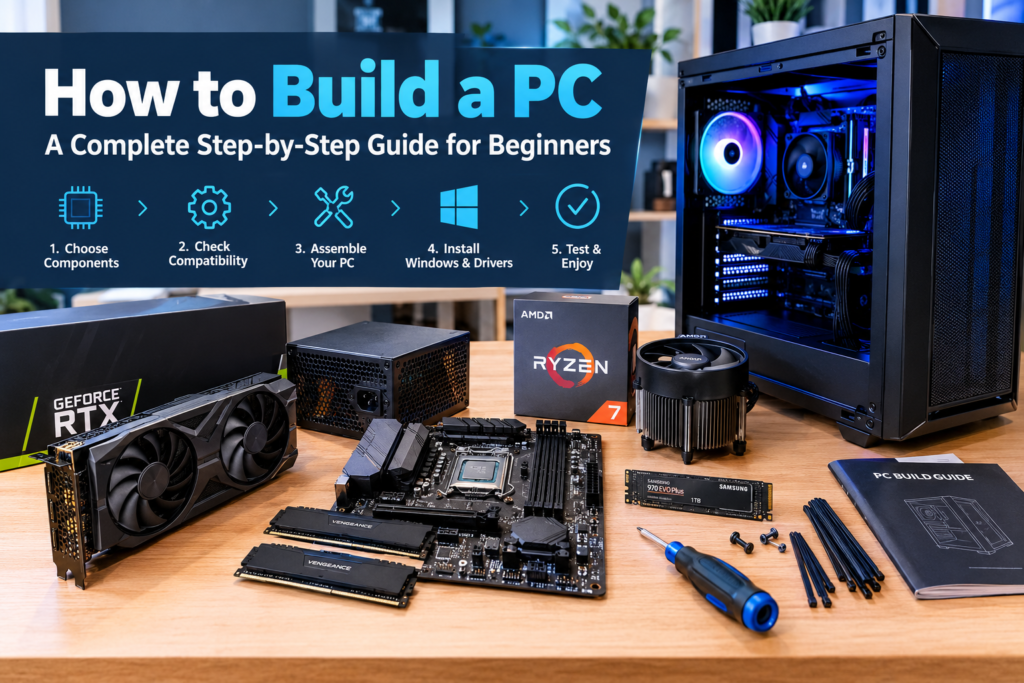
Building your own PC might sound complicated at first, especially when you see dozens of components, confusing technical specifications, and cables going in every direction. However, the process becomes much easier when you understand what each PCpart does and follow the correct order.
The best part? You don’t need to be a computer expert to build a PC. With the right components, a little patience, and a suitable workspace, you can assemble a computer for gaming, studying, work, content creation, or everyday use.
Building your own computer can also give you more control over performance, appearance, and future upgrades. Instead of paying for a prebuilt system with components you don’t necessarily need, you can choose exactly where your money goes.
In this guide, you’ll learn how to build a PC step by step, which components you need, how to avoid common mistakes, and what to do when you finally press the power button.
Is Building a PC Difficult for Beginners?
Building a PC is generally easier than many beginners expect. Most modern components are designed to fit into specific sockets or connectors, so you don’t need to solder anything or have advanced electrical knowledge.
The most challenging parts are usually choosing compatible components, installing the CPU correctly, connecting the small case cables, and troubleshooting problems if the computer doesn’t start immediately.
If you take your time and follow the motherboard manual, building a PC can be a rewarding weekend project.
You should also remember that you don’t have to finish everything in one sitting. If you’re unsure about a connection, stop and check the instructions rather than forcing a component into place.
Step 1: Choose the Right PC Components
Before you start building, you need to purchase all the essential components. Every part has a specific purpose, and compatibility matters more than simply buying the most expensive hardware.
Here are the main components you’ll need.
1. Processor (CPU)
The central processing unit, commonly called the CPU, handles instructions and calculations. It affects gaming performance, multitasking, productivity, and many other computer tasks.
Popular processor families include AMD Ryzen and Intel Core.
When choosing a CPU, consider what you intend to do with your computer. A budget processor may be perfectly suitable for everyday work and entry-level gaming, while demanding workloads may benefit from a more powerful model.
Important: Your CPU must be compatible with your motherboard’s socket and supported by its BIOS. Check these details before purchasing.
2. Motherboard
The motherboard connects your processor, memory, storage, graphics card, and other components.
It also determines which processors and memory types you can use, how many storage devices you can install, and which connectivity options are available.
For example, a motherboard might support DDR4 memory but not DDR5. Similarly, a processor designed for one socket will not fit a motherboard built for another.
Before buying a motherboard, check:
- CPU socket and processor compatibility.
- DDR4 or DDR5 memory support.
- Motherboard size and case compatibility.
- Number of M.2 and SATA storage connections.
- USB ports, Wi-Fi, Bluetooth, and networking features.
- BIOS support for your chosen processor.
You don’t necessarily need an expensive motherboard. Choose one that provides the features you actually need.
3. RAM (Memory)
RAM stores the data your computer is actively using. More memory can improve multitasking and help certain games and applications run smoothly.
For a modern desktop PC, 16GB is a reasonable starting point for general use and many games. However, 32GB is often a better choice for demanding games, heavy multitasking, and content creation.
Choose memory that your motherboard supports. Installing two compatible memory sticks, such as a 2 × 8GB or 2 × 16GB kit, can enable dual-channel operation on supported systems.
Check your motherboard manual to identify the recommended memory slots.
4. Storage: SSD or HDD?
Storage is where your operating system, games, applications, and files are kept.
An SSD is generally the best choice for your main drive because it provides faster boot times, quicker application loading, and a more responsive experience than a traditional hard disk drive.
The two common options are:
- NVMe M.2 SSD: A compact drive that connects directly to a compatible motherboard slot.
- SATA SSD: A drive that connects using a SATA data cable and a separate power cable.
A hard disk drive can still be useful for storing large amounts of files, backups, and media at a lower cost per gigabyte.
For most new builds, a 1TB SSD is a practical starting point if your budget allows it.
5. Graphics Card (GPU)
The graphics processing unit renders images, animations, and 3D scenes. It is especially important for gaming, 3D modelling, video editing, and other graphics-intensive tasks.
Popular graphics card families include NVIDIA GeForce RTX and AMD Radeon RX.
The right GPU depends on your target resolution, preferred games, and budget. A graphics card suitable for 1080p gaming may not provide the same experience at 1440p or 4K.
Before buying one, check its physical length, thickness, power requirements, and connector requirements.
Some processors also include integrated graphics. If yours does, you may be able to use the computer without a separate graphics card, depending on the motherboard’s display outputs and your performance needs.
6. Power Supply Unit (PSU)
The power supply converts electricity from your wall outlet into the power required by your computer components.
This is one part where cutting corners can be a bad idea. A poor-quality PSU can create reliability and safety problems, so choose a reputable model with suitable protections and sufficient capacity.
Consider the following:
- Total system power requirements.
- PSU quality and independent reviews.
- Required CPU and graphics card connectors.
- Physical compatibility with your case.
- Efficiency certification, such as 80 PLUS, where applicable.
A higher wattage rating does not automatically mean a better power supply. Quality matters just as much.
Never open a PSU to inspect its internal components. Dangerous electrical charges can remain inside even after it has been disconnected.
7. PC Case
The case houses your components and affects airflow, noise, appearance, and ease of assembly.
Common sizes include full-tower, mid-tower, and mini-ITX cases, although actual dimensions and supported hardware vary between models.
Before purchasing a case, make sure it supports your motherboard size, graphics card dimensions, CPU cooler height, and PSU format.
A case with good airflow can help keep temperatures under control without requiring excessive fan speeds.
8. CPU Cooler
The CPU cooler removes heat generated by your processor.
Some processors include a stock cooler, while others require a separate purchase. Depending on your CPU and intended workload, you might choose an air cooler or an all-in-one liquid cooler.
For a basic gaming PC, a suitable air cooler is often enough. More expensive cooling systems are not automatically necessary.
Check cooler compatibility, clearance, and whether the cooler includes thermal paste or requires you to apply it separately.
Step 2: Check Compatibility Before Buying
One of the most frustrating mistakes when learning how to build a PC is buying components that don’t work together.
A quick compatibility check can save you money, delivery delays, and unnecessary returns.
Use this checklist before ordering:
- The processor matches the motherboard socket.
- The motherboard supports the CPU, including the required BIOS version.
- The RAM type and capacity are supported.
- The case supports the motherboard’s form factor.
- The graphics card fits inside the case.
- The CPU cooler fits the socket and case.
- The PSU provides enough power and the required connectors.
- The motherboard has the storage connections you need.
- The case and motherboard provide the required front-panel and USB connections.
A PC component compatibility tool can help you identify obvious conflicts, but always verify critical details against the manufacturers’ specifications.
Step 3: Prepare Your Workspace and Tools
You don’t need a professional workshop to build a desktop computer. A clean table, good lighting, and a few basic tools are usually enough.
Prepare the following:
- A Phillips-head screwdriver.
- A clean, stable work surface.
- The manuals supplied with your motherboard and case.
- A small container for screws.
- Cable ties or Velcro straps.
- An anti-static wrist strap or another appropriate ESD precaution.
Work on a hard surface rather than a carpet whenever possible. Avoid building in an area where static electricity is likely to accumulate.
Before touching components, disconnect the power supply from the wall. Handle circuit boards by their edges and avoid touching exposed contacts.
Never force a component into a socket or connector. If it doesn’t fit easily, check its orientation and compatibility.
Step 4: Install the CPU
Installing the processor is one of the most important steps because its pins or socket contacts can be damaged if handled incorrectly.
Start by placing the motherboard on its box or another clean, non-conductive surface.
Open the CPU socket according to the motherboard instructions. Find the small alignment marker on the processor and match it with the corresponding marker on the socket.
Carefully place the CPU into position. On a typical modern desktop socket, it should settle into place without force. Secure the socket mechanism according to the manufacturer’s instructions.
Do not push down on the processor to make it fit. Different CPU platforms have different socket designs, so follow the instructions for your specific motherboard.
If you notice bent pins, damaged contacts, or unusual resistance, stop rather than trying to force the installation.
Step 5: Install the RAM
Installing RAM is relatively straightforward.
First, consult your motherboard manual to find the recommended slots for your memory configuration.
Open the relevant slot latches if necessary, align the notch on the RAM stick with the slot, and press down evenly until the module is fully seated and the retaining mechanism engages.
The notch prevents the module from being installed in the wrong orientation.
If you’re using two memory sticks, don’t automatically place them next to each other. Many motherboards recommend the second and fourth slots, often labelled A2 and B2, but your motherboard manual takes priority.
Once installed, check that both modules are seated properly.
Step 6: Install the M.2 SSD
If you’re using an M.2 SSD, install it before fitting the motherboard into the case when access is easier.
Locate a compatible M.2 slot and check the motherboard manual for supported drive lengths and installation instructions.
If the motherboard includes an M.2 heatsink, remove it carefully and keep its screws safe.
Insert the SSD into the slot at the recommended angle, lower it into position, and secure it using the supplied mounting mechanism.
If a protective film covers the thermal pad on the heatsink, remove the film before reinstalling the heatsink.
Some M.2 slots share bandwidth with other connectors or disable certain SATA ports when occupied. Check the manual if you plan to install several drives.
Step 7: Install the CPU Cooler
Your processor needs suitable cooling before you can safely run the system under normal workloads.
If your cooler requires a mounting bracket, install the correct bracket for your CPU socket. Follow the manufacturer’s instructions carefully because mounting systems differ.
If thermal paste is not pre-applied, place the recommended amount on the CPU heat spreader according to the cooler instructions.
Position the cooler and tighten its mounting screws evenly. Avoid overtightening or applying uneven pressure.
Connect the cooler’s fan to the appropriate motherboard header, commonly labelled CPU_FAN.
For liquid coolers, connect the pump and radiator fans according to the manufacturer’s instructions.
Before moving on, double-check that the cooler is secure and its cables are connected correctly.
Step 8: Prepare the PC Case
Now it’s time to prepare the case.
Remove the side panels and identify the motherboard mounting points, PSU compartment, cable-routing openings, and storage mounting areas.
Check whether the case has pre-installed motherboard standoffs. These small spacers keep the motherboard away from the metal case.
The standoffs must match the mounting holes on your motherboard. An incorrectly positioned extra standoff can cause a short circuit.
If your motherboard uses a separate rear I/O shield, install it before mounting the motherboard. Many modern motherboards have an integrated shield, so this step may not be necessary.
If the case includes fans, check their orientation and cable connections. Front or bottom fans commonly draw air into the case, while rear or top fans commonly exhaust warm air, depending on the overall airflow design.
Step 9: Install the Motherboard
Carefully lower the motherboard into the case, aligning its rear ports with the I/O opening and its mounting holes with the standoffs.
Once everything is aligned, secure the board using the appropriate screws.
Tighten the screws until they are secure without applying excessive force.
Avoid dragging the motherboard across the case or allowing it to rest directly against metal mounting points without the correct standoffs.
After installation, check that no cables are trapped underneath the board and that the rear ports are positioned correctly.
Step 10: Install the Power Supply
If your case has a separate PSU compartment, slide the power supply into its designated position.
In many cases, the PSU fan faces a ventilated bottom opening. However, the correct orientation depends on the case design and available ventilation.
Secure the PSU using its mounting screws.
If you’re using a modular power supply, connect only the cables you need. Common connections include the motherboard power cable, CPU power cable, graphics card power cable, and SATA power cable for compatible drives or accessories.
Important: Never mix modular PSU cables from different power supply models unless the manufacturer explicitly confirms compatibility. The connectors may look identical while using different electrical pinouts.
Step 11: Install the Graphics Card
If your build includes a dedicated GPU, install it into the appropriate PCIe x16 slot, usually the top reinforced slot on the motherboard.
Remove the necessary expansion-slot covers from the case.
Release the PCIe slot latch, align the graphics card with the slot, and press it into place until it is fully seated.
Secure the card to the case with the appropriate screws.
Connect the required PCIe or 12V-2×6 power cables according to the graphics card and PSU manufacturers’ instructions. Make sure the connectors are fully inserted and that any specified cable-bending clearance is maintained.
If the card is particularly heavy, consider a suitable support bracket to reduce strain on the slot.
Once installed, check that the card’s fans can spin freely and that no cables are touching them.
Step 12: Connect the Cables
Cable management might look intimidating, but you only need to identify the correct connectors and connect them carefully.
The most important connections include:
| Cable | Purpose |
|---|---|
| 24-pin motherboard power | Supplies power to the motherboard |
| CPU EPS power | Supplies power to the processor’s voltage regulation circuitry |
| GPU power | Supplies power to a dedicated graphics card |
| CPU_FAN | Connects the CPU cooler fan |
| Front-panel connectors | Connect the case power button and status LEDs |
| Front USB connectors | Enable front-panel USB ports |
| HD AUDIO | Connects the case’s headphone and microphone ports |
| SATA data and power | Connects compatible SATA storage devices |
The front-panel connectors are often the trickiest because the pins are small and may be labelled individually.
Look for the front-panel diagram in your motherboard manual. Do not guess where the power-switch or LED connectors belong.
Once the essential cables are connected, route excess cable length behind the motherboard tray where possible. Keep cables away from fans and avoid pulling them tightly.
You don’t need perfect cable management on your first build. Reliable connections and unobstructed airflow matter more than making every cable invisible.
Step 13: Perform a Final Check Before Turning It On
Before connecting power, inspect the entire system.
Make sure the CPU cooler is installed, the RAM is seated, the graphics card is secured, and all required power connections are in place.
Check that there are no loose screws inside the case and that the motherboard is mounted on the correct standoffs.
Connect your monitor to the graphics card if you have installed one and intend to use it. Connecting the display to the motherboard instead may produce no image if your processor lacks integrated graphics.
Connect the keyboard, mouse, and power cable. Switch on the PSU, then press the case power button.
The first startup may take longer than expected, especially on a new DDR5 system while the motherboard trains the memory. The system may restart during this process.
Give it time and consult the motherboard manual if the system appears to be stuck. Avoid repeatedly cutting the power without understanding what’s happening.
Step 14: Enter the BIOS and Check Your Hardware
If the PC starts successfully, enter the BIOS or UEFI setup, commonly by pressing Delete or F2 during startup.
The exact key depends on the motherboard.
Check whether the processor, RAM, and storage drive are detected correctly. Review the CPU temperature and confirm that the CPU cooler is operating as expected.
You may also want to enable the appropriate memory profile, such as AMD EXPO or Intel XMP, if your components support it.
These profiles can allow compatible memory to run at its advertised settings, but they are technically overclocking profiles and are not guaranteed to work with every CPU and motherboard combination. If the system becomes unstable, return to default memory settings.
Don’t change random BIOS settings just because they look useful. Start with the defaults and make changes only when you understand their purpose.
Step 15: Install Windows and the Necessary Drivers
Once the system passes its initial checks, install your preferred operating system.
For a Windows installation, you’ll generally need a USB drive containing official Windows installation media and a valid licence if activation is required.
Follow the installation instructions and select the correct SSD as the installation destination. Be careful not to erase another drive containing important files.
After Windows is installed, complete the following tasks:
- Install Windows updates.
- Install the appropriate AMD or Intel chipset drivers.
- Install your graphics card driver from the official NVIDIA, AMD, or Intel website.
- Install any required Wi-Fi, Bluetooth, or network drivers.
- Check Device Manager for missing drivers.
- Activate Windows if necessary.
- Install your applications and games.
Avoid downloading driver packages from unfamiliar websites. Official manufacturer sources are generally the safest starting point.
You can also check for motherboard BIOS updates, but don’t update the BIOS unnecessarily during the initial setup. If an update is needed, follow the manufacturer’s procedure carefully and ensure the system has stable power.
Step 16: Test Your New PC
Getting the desktop to appear is exciting, but your work isn’t completely finished.
Run a few basic checks to make sure the system is stable.
Check CPU and GPU temperatures
Use reputable hardware-monitoring software to observe temperatures at idle and under load.
Temperatures depend on the specific processor, graphics card, cooler, case, room temperature, and workload. Compare your readings with the component manufacturer’s operating limits rather than relying on one universal temperature target.
If temperatures rise unusually quickly, check the cooler mounting, thermal paste application, fan connections, and airflow.
Test RAM stability
Run a reputable memory diagnostic or memory stability test. This is particularly useful if you enable XMP or EXPO profiles.
Unexpected crashes, blue screens, or memory errors may indicate unstable settings or a hardware issue.
Test gaming performance
If you built a gaming PC, try a few games and monitor frame rates, temperatures, and system stability.
Make sure your monitor is connected to the intended graphics output and configured to use its correct refresh rate.
If performance is lower than expected, check the graphics drivers, power settings, game settings, and CPU or GPU utilisation before assuming a component is faulty.
Check for unusual noises
Some fan noise is normal, but grinding, rattling, or persistent clicking deserves investigation.
Shut the system down before checking for cables touching fans or other mechanical obstructions.
How Much Does It Cost to Build a PC in 2026?
The cost of building a PC depends on your country, component availability, performance targets, and whether you buy new or used hardware.
The following figures are illustrative UK budget ranges, not live quotes. Actual prices can vary considerably, especially for graphics cards and high-end processors.
| PC type | Illustrative budget |
|---|---|
| Basic home or office PC | £250–£450 |
| Entry-level gaming PC | £450–£700 |
| Mid-range gaming PC | £700–£1,100 |
| Higher-performance gaming PC | £1,100–£1,800+ |
| Enthusiast or high-end workstation | £1,800+ |
These estimates generally cover the tower itself, not necessarily a monitor, keyboard, mouse, operating system licence, or other accessories.
If you’re working with a limited budget, prioritise the components that affect your intended workload most. A gaming build often benefits significantly from allocating a sensible share of the budget to the GPU, while an office PC may not need a dedicated graphics card at all.
Don’t forget to include a suitable power supply, adequate storage, and a case with reasonable airflow. Saving a small amount on these components can create problems later.
Common PC Building Mistakes to Avoid
Even experienced builders can make mistakes. Knowing the most common problems makes your first build much less stressful.
Buying incompatible components
A processor that doesn’t match the motherboard socket cannot simply be forced into place. Verify compatibility before ordering.
Forgetting the motherboard standoffs
Installing the motherboard incorrectly can cause electrical problems. Make sure every mounting point is positioned correctly.
Connecting the monitor to the wrong port
If you have a dedicated graphics card, connect your monitor to it unless you have a specific reason to use another display output.
Forgetting CPU power
The 24-pin motherboard connector alone is not enough. Most desktop motherboards also require a separate CPU power connection.
Installing RAM in the wrong slots
Use the motherboard manual to identify the recommended slots for your memory configuration.
Ignoring airflow
A powerful computer in a poorly ventilated case can run hot and become noisy. Choose a case and fan arrangement appropriate for your components.
Mixing modular PSU cables
Never assume cables from different power supplies are interchangeable. Incorrect cabling can damage components.
Rushing the first startup
If the system doesn’t display an image immediately, check the diagnostic LEDs, motherboard manual, and basic connections before dismantling the entire build.
Is It Better to Build a PC or Buy a Prebuilt Computer?
Both options have advantages, and the right choice depends on your budget and how much time you want to spend.
Building your own PC gives you direct control over component selection, cooling, appearance, and upgrade options. It also teaches you how your computer works, which can make future upgrades and troubleshooting easier.
A prebuilt PC offers convenience. The manufacturer or retailer assembles the system, and you may receive a single warranty covering the complete computer. However, component quality, upgrade restrictions, and warranty terms vary between sellers.
| Feature | Custom-built PC | Prebuilt PC |
|---|---|---|
| Component selection | Extensive control | Depends on the configuration |
| Assembly time | Requires your time | Ready to use after setup |
| Troubleshooting | Your responsibility initially | Seller support may help |
| Upgrade flexibility | Depends on your chosen parts | Depends on the system |
| Price-to-performance | Can be competitive | Depends on the deal |
| Learning experience | Excellent | More limited |
Neither option is automatically cheaper. Compare complete specifications, warranties, and total costs before deciding.
Frequently Asked Questions
1. Can a beginner build a PC?
Yes. A beginner can build a PC by following a reliable guide, checking component compatibility, and using the motherboard and component manuals. Patience is more important than advanced technical knowledge.
2. How long does it take to build a PC?
A first-time builder should allow around three to six hours for assembly and initial troubleshooting. Experienced builders may finish sooner, while complicated cooling setups or compatibility problems can take longer.
3. Do I need to buy Windows separately?
Windows may require a separate licence depending on your situation. You can create official installation media, but installation access and licence activation are different things. Check the current Microsoft licensing terms before purchasing a key.
4. Can I build a gaming PC without a graphics card?
Yes, if your chosen processor includes integrated graphics and your motherboard provides a compatible display output. This can be a good starting point for everyday tasks and lighter games, although demanding games may require a dedicated GPU for satisfactory performance.
5. What is the most important part of a gaming PC?
The graphics card is often one of the most influential components for gaming performance, particularly at higher resolutions. However, the CPU, RAM, storage, cooling, and power supply also matter. The best configuration balances all these components for your preferred games.
6. Is building a PC cheaper than buying one?
It can be, but not always. Component discounts, retailer pricing, used hardware, warranty coverage, and assembly costs all affect the final comparison. Compare equivalent specifications rather than looking only at the headline price.
7. What should I do if my PC turns on but shows no display?
First, check the monitor input, display cable, and graphics output. Then verify the RAM seating, CPU power connector, graphics card power connections, and motherboard diagnostic indicators. If the problem continues, consult the motherboard manual and troubleshoot one component at a time.
Conclusion: Building Your Own PC Is Worth Learning
Learning how to build a PC gives you more control over your computer, helps you understand its hardware, and makes future upgrades less intimidating.
Start by choosing compatible components for your budget, prepare your workspace, and assemble the system carefully. Once the hardware is installed, check the BIOS, install your operating system and drivers, and test the computer before relying on it for demanding tasks.
You don’t need the most expensive processor or graphics card to build a good PC. What matters is choosing the right components for your needs and making sure they work together properly.
Take your time, follow the instructions, and don’t force anything that doesn’t fit. Your first build may take a few hours, but the experience can make every future upgrade easier.
Ready to start your first build? Make a component list, check compatibility, compare prices, and build a PC that suits your needs today while leaving room for tomorrow’s upgrades.
Check out more articles on Infoaina