Picking the best AI models to run locally used to mean digging through Hugging Face model cards and hoping the benchmark numbers weren’t cherry-picked. That part’s mostly solved now. The real question in 2026 isn’t whether a good open model exists for what you want to do — there are dozens — it’s matching one to the GPU you actually own, without burning a weekend on trial and error first.
This guide skips the marketing language and goes straight to what actually fits on your hardware, what it costs you in tokens per second, and which tool to run it with.
Table of Contents
What “Running Locally” Actually Requires
Before you can compare the best AI models to run locally, two numbers matter more than anything else: your GPU’s VRAM, and the model’s quantization level.
VRAM is the fast memory on your graphics card, and it’s where model weights need to live for decent speed. System RAM works too, technically — you can “offload” layers to it — but it’s dramatically slower. Think several words per second instead of dozens.
Quantization is compression for model weights. A model advertised at 8 billion parameters needs roughly 16GB of VRAM at full precision. Quantize it to 4-bit (written as Q4 or Q4_K_M) and that drops to around 5-6GB, with only a small, usually unnoticeable hit to output quality. Almost nobody runs full-precision models on consumer hardware. Q4 is the default for a reason.
One more thing worth knowing before you pick: bigger doesn’t automatically mean better for your use case. A well-tuned 9B model running fast beats a 32B model that chokes your system and takes 40 seconds per response.
Three Mistakes That Waste the Most Time
Downloading the full-precision model instead of a quantized one. Model pages don’t always make this obvious. Look specifically for GGUF format and a Q4 or Q5 tag in the filename — that’s the version built for consumer hardware, not the 20GB+ original sitting next to it.
Judging speed from a demo video. Someone showing off a model on an RTX 5090 tells you nothing about how it’ll run on your 4060. Tokens-per-second scales with your hardware, not with how impressive the model looks in someone else’s screen recording.
Ignoring context length until it breaks. A model that feels fine at first can slow to a crawl, or start forgetting earlier parts of a long conversation, once you fill up its context window — because that window shares VRAM with the model itself. If you’re doing long document work, budget for it before you pick a model, not after you’re already frustrated with one.
Best AI Models to Run Locally, by Hardware Tier
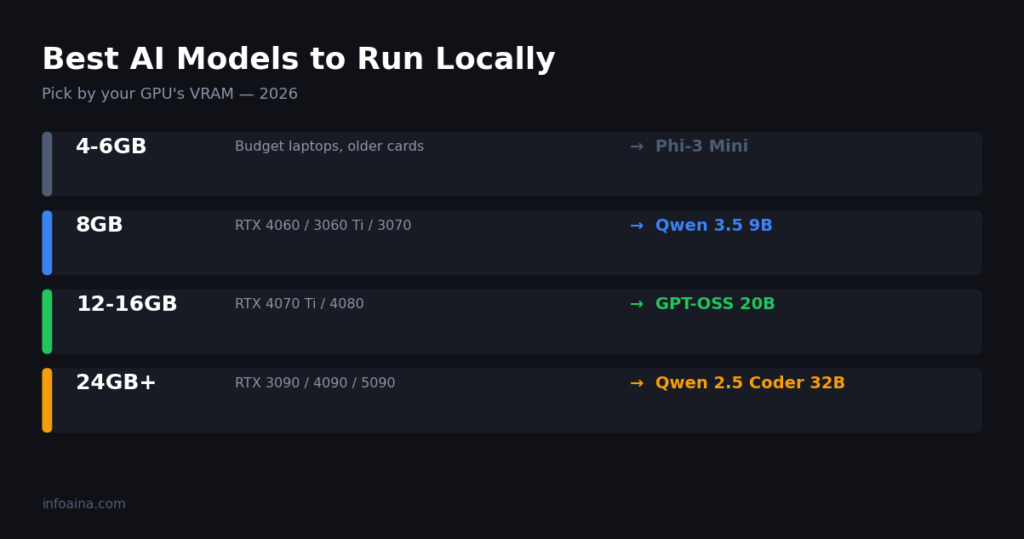
4-6GB VRAM (Budget Laptops, Older Cards)
You’re not running anything flashy here, but you’re not stuck either.
- Phi-3 Mini (3.8B) — Microsoft’s small model, still holds up for basic Q&A and summarization
- Gemma 2 2B — Google’s efficient tiny model, light enough to run on some phones
- Qwen2.5 0.5B — genuinely tiny, useful for simple multilingual tasks and not much else
Nobody’s writing a novel with these. They’re for quick chat, basic summaries, and situations where “runs at all, offline” beats “runs well.”
8GB VRAM (The Most Common Tier — RTX 4060, 3060 Ti, 3070, 2070)
This is where things get genuinely usable, and it’s also the tier most people reading this are actually sitting on.
Qwen 3.5 9B is the pick right now. At Q4 quantization it needs about 5-6GB of VRAM, runs somewhere around 35-40 tokens per second on an 8GB card, and scores 82.5 on MMLU-Pro — a number that belonged to 70B models a year ago. It also handles images natively, which most models in this tier don’t.
Llama 3.1 8B is the reliable alternative. Slightly smaller footprint (around 4.6GB at Q4), a bit less capable on paper, but Meta’s ecosystem around it is enormous — more fine-tunes, more guides, more troubleshooting threads if something breaks.
Honest limitation at this tier: your usable context window is smaller than the spec sheet advertises, because the KV cache eats into the same VRAM as the model weights. Long conversations get tight fast.
12-16GB VRAM (RTX 4070 Ti, 4080, Apple Silicon With 16GB+ Unified Memory)
GPT-OSS 20B fits here at roughly 11GB and gives you configurable reasoning depth — you can dial up “thinking time” for harder questions and dial it back down for quick ones.
Gemma 4 12B deserves a specific mention: it’s built to run comfortably in 16GB of total RAM, not just VRAM, which matters if you’re on a laptop without a dedicated high-VRAM GPU.
This tier is the real sweet spot for serious hobbyist use — coding help, longer documents, decent context windows without constant compromise.
24GB+ VRAM (RTX 3090, 4090, 5090)
Now you’re playing with 32B-class models properly.
Qwen 2.5 Coder 32B at Q4 (around 17GB) is still one of the strongest local coding models available, full stop. Mistral Small 3.1 24B adds vision support if you need a model that can also read images and documents. On an RTX 5090, expect somewhere in the 40-55 tokens/second range for a 32B model at Q4 — fast enough that it doesn’t feel like waiting on a response.
A used RTX 3090 (still findable for $1,000-1,400) gets you into the same territory, just slower per token.
A Quick Note on Apple Silicon (M-Series Macs)
Macs don’t have “VRAM” in the traditional sense — M-series chips use unified memory, shared between the CPU and GPU. A MacBook with 16GB of unified memory behaves roughly like a 12-14GB VRAM PC for model-loading purposes, since the OS and other apps draw from that same pool too. A 32GB M-series Mac comfortably handles the 24GB-tier models above, often at similar or better speeds than a mid-range discrete GPU, thanks to Apple’s memory bandwidth. Both Ollama and LM Studio run natively on Apple Silicon, no extra setup required.
Quick Comparison Table
| Model | Params | VRAM (Q4) | Best For |
|---|---|---|---|
| Qwen2.5 0.5B | 0.5B | ~1GB | Bare-minimum chat |
| Phi-3 Mini | 3.8B | ~3GB | Laptops, summarization |
| Llama 3.1 8B | 8B | ~4.6GB | Reliable all-rounder |
| Qwen 3.5 9B | 9B | ~5.5GB | Best pick for 8GB cards |
| GPT-OSS 20B | 21B | ~11.3GB | Configurable reasoning |
| Gemma 4 12B | 12B | Fits in 16GB RAM | Laptops without big VRAM |
| Mistral Small 3.1 24B | 24B | ~12.8GB | Vision + text |
| Qwen 2.5 Coder 32B | 32B | ~16.9GB | Serious local coding |
VRAM figures are approximate Q4_K_M weight sizes. Add roughly 2-4GB more in practice for context and KV cache headroom.
Ollama vs. LM Studio vs. llama.cpp
You need software to actually load and run these models, and three names dominate this space.
Ollama is the CLI-first option and the closest thing to a standard at this point. Type ollama run qwen3.5 and you’re talking to a model in under a minute. It’s what most tutorials assume you’re using, which matters the moment you hit a problem and go looking for a fix online.
LM Studio is the GUI pick, and it’s a genuinely good one — model browser, visual parameter sliders, side-by-side model comparison. If typing commands into a terminal isn’t your idea of a good time, start here instead. It picked up a headless server mode this year too, so it’s not purely a desktop toy anymore.
llama.cpp sits underneath both of them, honestly — it’s the inference engine doing the actual work. Most people never touch it directly unless they’re on unusual hardware or want granular control over every setting.
For production use with multiple concurrent users, vLLM is the real answer. In one benchmark on an RTX 4090 running Llama 3.1 8B, it beat Ollama’s aggregate throughput by roughly 6x. But that’s a different problem than “I want to chat with a model on my own desktop.”
Getting Started in Under 5 Minutes
If you just want to try something right now: install Ollama, then run one command.
ollama run qwen3.5That downloads the model on first run — a few gigabytes, so give it a minute — and drops you straight into a chat prompt. No account, no API key, nothing sent anywhere.
Once that works, swapping models is just as easy. ollama run llama3.1 or ollama run mistral pulls a different one. LM Studio does the same job with a search bar and a download button instead of a terminal, if that’s more your speed.
That’s genuinely it. The hard part was never the software. It’s figuring out which model to run in the first place — which is the whole reason this guide exists.
Which One Should You Actually Install?
If you’ve got 8GB of VRAM and still haven’t picked: Qwen 3.5 9B through Ollama. It’s the best balance of capability and speed at the tier where most people actually sit, and Ollama gets you talking to it in one command.
If you’re doing serious coding work and have 24GB to spare, Qwen 2.5 Coder 32B is worth the extra setup time. It’s not close for local coding assistance right now.
And if you’re still on 4-6GB, it might genuinely be worth checking whether a used 12GB card fits your budget before you sink a lot of time optimizing around a hard ceiling. Phi-3 Mini is fine. It’s also going to frustrate you eventually.
FAQ
What are the best AI models to run locally on 8GB VRAM?
Qwen 3.5 9B at Q4 quantization. It fits comfortably, runs around 35-40 tokens per second, and scores close to what 70B models managed a year ago.
Do I need a GPU to run AI models locally?
Not strictly. You can run small models on CPU alone or offload to system RAM, but speed drops sharply. A dedicated GPU with at least 8GB of VRAM is the realistic starting point for anything beyond basic chat.
Is Ollama or LM Studio better for beginners?
LM Studio, if you want a visual interface with no command-line work. Ollama, if you’re comfortable with a terminal and want something closer to the industry standard.
How much VRAM do I need for a 70B parameter model?
Around 40GB at Q4 quantization, which puts it out of reach for most single consumer GPUs. You’re looking at multi-GPU setups or heavy CPU offloading, both of which come with real trade-offs in speed or complexity.
Is running AI models locally actually private?
Yes, genuinely. Once the model is downloaded, nothing you type gets sent anywhere — there’s no server on the other end to leak, log, or train on your conversations. That’s the entire appeal for a lot of people, separate from cost or speed.
Can I run these models on a Mac instead of a GPU?
Yes. M-series Macs use unified memory instead of dedicated VRAM, but both Ollama and LM Studio run natively on Apple Silicon. A 16GB Mac roughly matches the 8GB VRAM tier above; a 32GB Mac reaches into 24GB-tier terrAitory.
[…] you haven’t settled on a model yet, our guide to the best AI models to run locally is a reasonable place to start before worrying about context […]